
Every place leads come from.
Each with its own link, mapping and rules.
Connect Typeform, Tally, Webflow, Framer, Google Forms, WordPress form plugins, Jotform or any tool that can send a webhook, map the fields to Perfex, set defaults, rules and duplicate handling, and test it before it goes live.
01Add a source
Open Catchline > Sources and choose a tool under Add a source. Give it a name only your team sees (for example the form or the campaign) and choose what it creates: a lead, a customer with a contact, or a ticket.
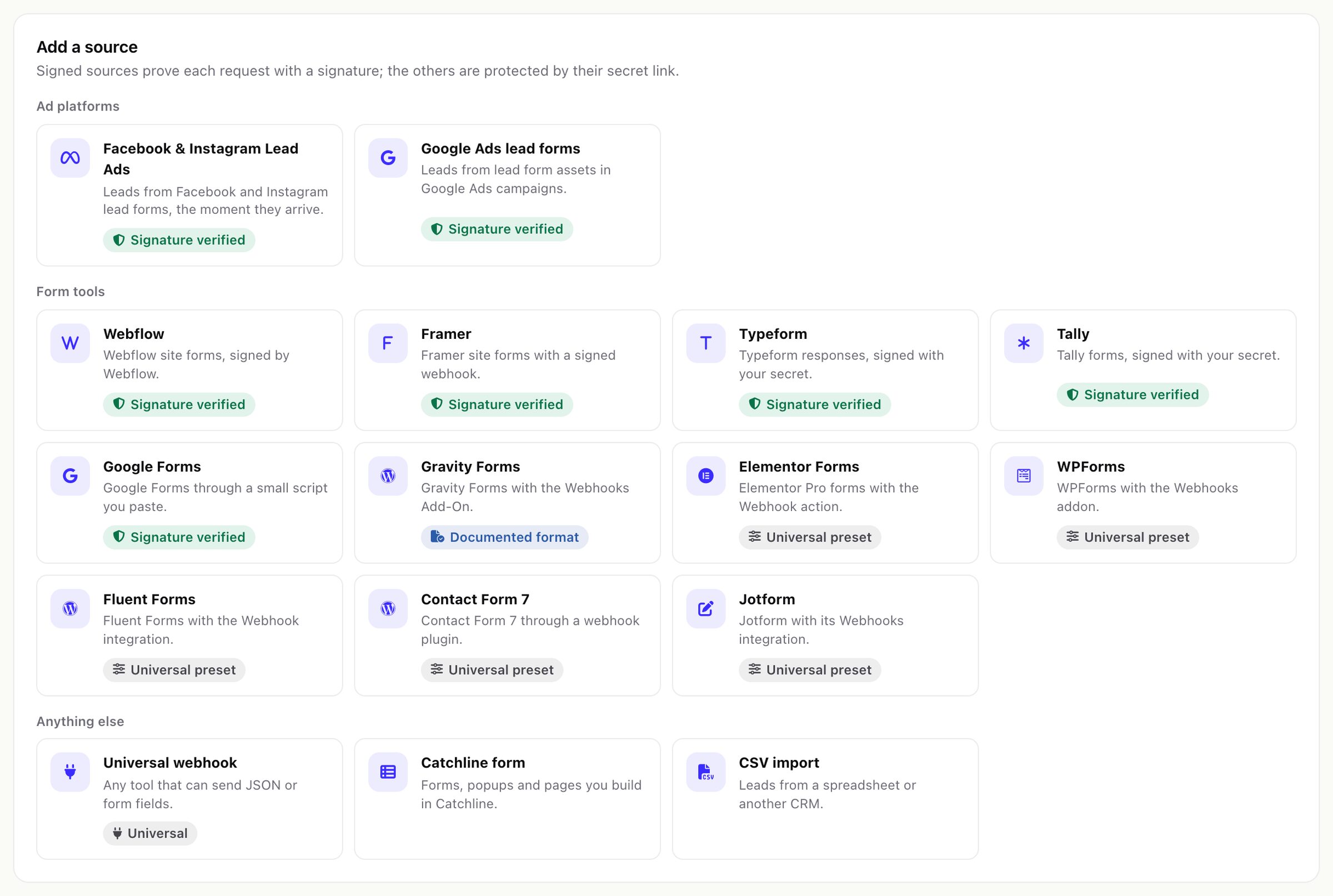
Each tool carries a badge that says how far Catchline trusts its format:
| Badge | Tools | Meaning |
|---|---|---|
| Signature verified | Webflow, Framer, Typeform, Tally, Google Forms, Facebook and Instagram Lead Ads, Google Ads lead forms | The payload format and the signature come from the tool's official documentation. With a signing secret saved, every request must carry a valid signature. |
| Documented format | Gravity Forms | The format is documented but not signed. The secret link and an optional secret header protect it. |
| Universal preset | Elementor Forms, WPForms, Fluent Forms, Contact Form 7, Jotform | The tool does not publish its webhook format, so the Universal reader takes whatever it sends, with settings that fit the tool. Send a test and check the fields. |
| Universal | Universal webhook (and CSV imports) | Reads JSON, form-urlencoded and multipart fields from any tool that can send a webhook. |
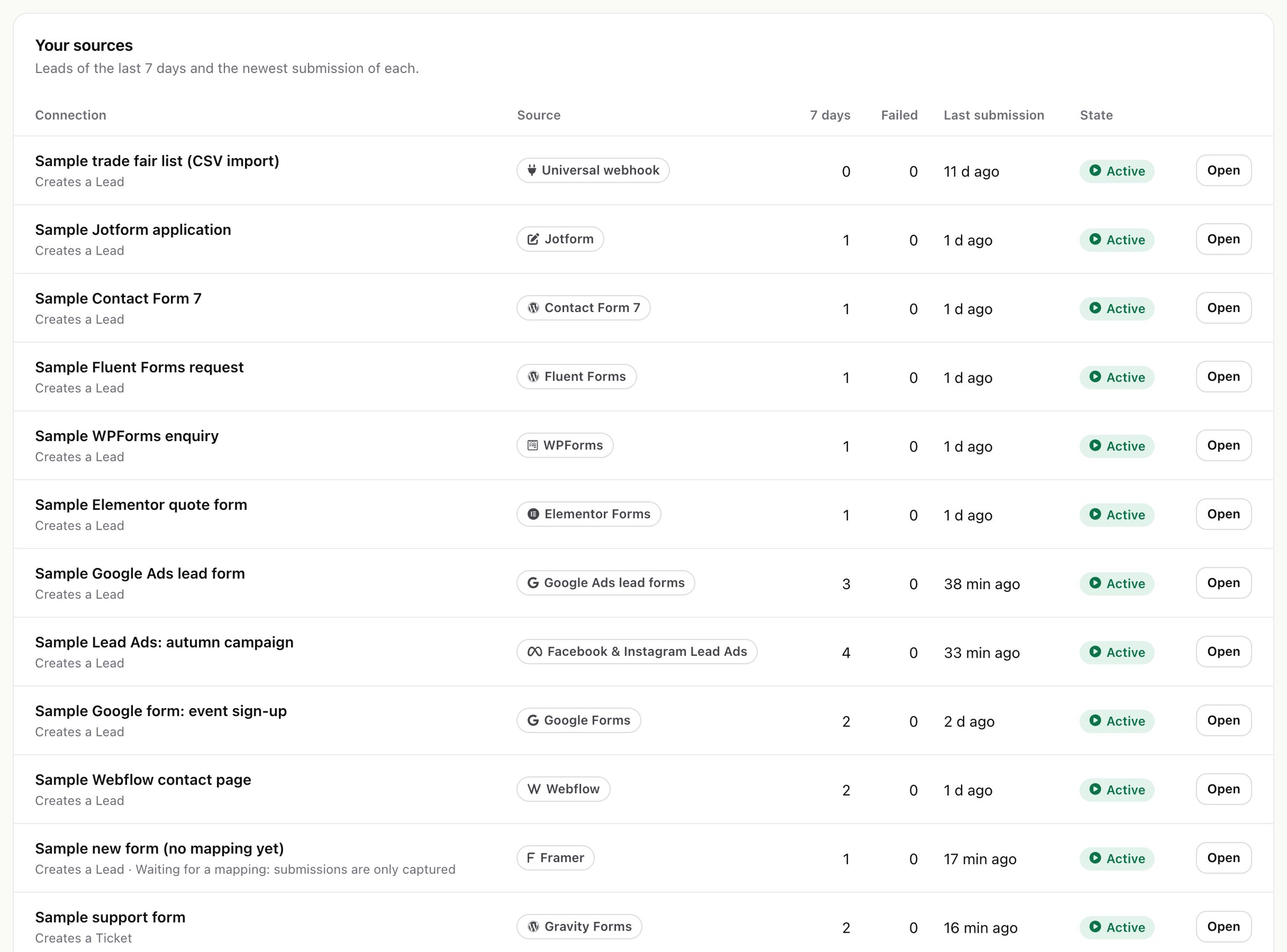
Built forms are listed as sources too. Lead Ads and Google Ads have their own page: Lead Ads and Google Ads.
02The webhook link
After you add a source, Catchline shows its webhook link, for example https://crm.example.com/catchline/hook/in/3-<secret>. Paste it into the tool.
The link is shown in full only once. Catchline keeps only a fingerprint of its secret part, so it cannot show it again. If you lose it, or it leaks, press Create a new link: the old link stops working at once and the tool needs the new one.
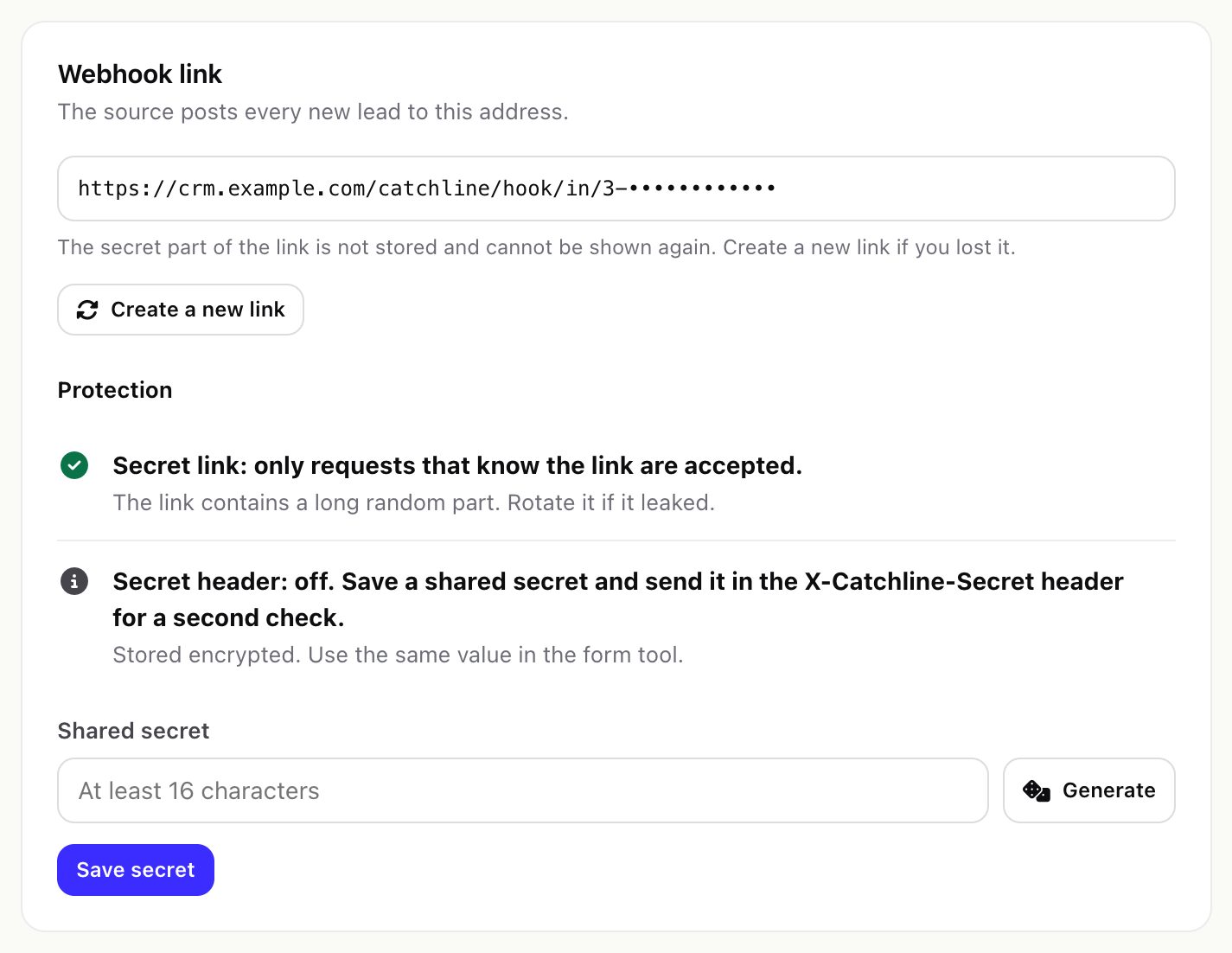
Protection lists what guards the source:
- Secret link: always on. Only requests that know the link are accepted.
- Signature (signed tools): save the same signing secret here and in the tool (at least 16 characters; Generate makes one). From then on every request must be signed.
- Secret header (tools that can send a custom header): save a shared secret and have the tool send it in the
X-Catchline-Secretheader. You can change the header name in the source's settings. - Elementor and Jotform cannot sign or send a header, so the secret link is their only protection. Keep it private.
Every source also has limits in Settings > Protection: largest submission (default 512 KB), submissions per minute per source (default 60), a repeat window in which the same answers count once (default 24 hours), the oldest signed request accepted (default 300 seconds) and automatic retries of failed submissions (default 3).
03Connect your tool
Each source shows a short guide for its tool. In short:
| Tool | What to do |
|---|---|
| Typeform | Add a webhook to the typeform with the link as its endpoint, give it a secret and save the same value as the signing secret. Hidden fields and variables arrive as fields too. |
| Tally | Form > Integrations > Webhooks with the link; add a signing secret in Tally and save the same value. |
| Webflow | A webhook for the trigger form_submission with the link. Webhooks created through the Webflow API are signed (save the secret key Webflow returned, or your OAuth app's client secret); webhooks added in the Webflow dashboard are not. |
| Framer | Select the form, Send To > Webhook, paste the link, type a secret of at least 32 characters and save the same value here. Publish the site. |
| Google Forms | Generate and save a signing secret, copy the script the source shows, paste it into the form's Apps Script editor, put the secret into SIGNING_SECRET, run install once and allow it. |
| Gravity Forms | Webhooks Add-On: a feed with the link, method POST, format JSON, body All Fields; optionally the secret header. Fields arrive by their field id (1, 1.3, 2 …). |
| Elementor Forms | Actions After Submit > Webhook, paste the link, update the page. |
| WPForms | Webhooks addon: the link, POST, JSON, one body row per field; optionally the secret header. |
| Fluent Forms | Settings & Integrations > Webhook (Fluent Forms Pro): the link, POST, JSON, all fields; optionally the secret header. |
| Contact Form 7 | Needs an add-on that sends webhooks (for example "CF7 to Webhook"); paste the link; optionally a custom header with the secret. |
| Jotform | Settings > Integrations > WebHooks with the link. Answers arrive under names such as q3_name.first. |
| Universal webhook | Any tool that can POST JSON or form fields. Nested values arrive as address.city, lists as one comma separated value. |
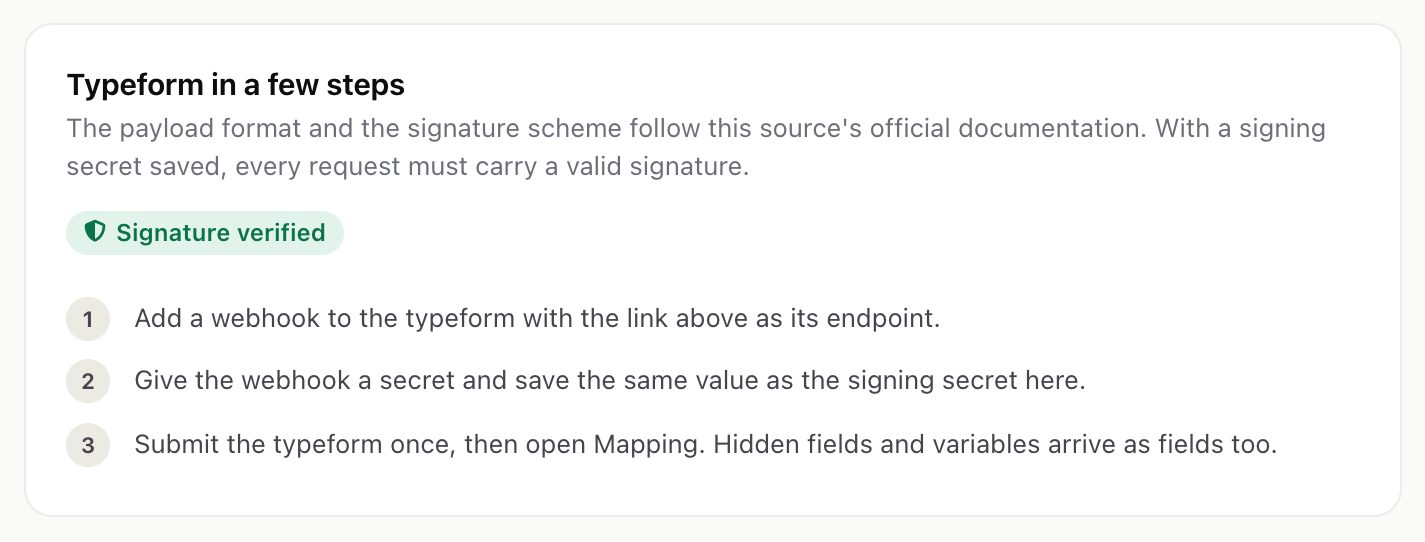
Then submit the form once. Catchline learns the form's fields from the first submission. Until a mapping is saved, submissions are only captured (status Captured); nothing is created in Perfex. Replay them after you map the fields.
04Setup: defaults and behaviour
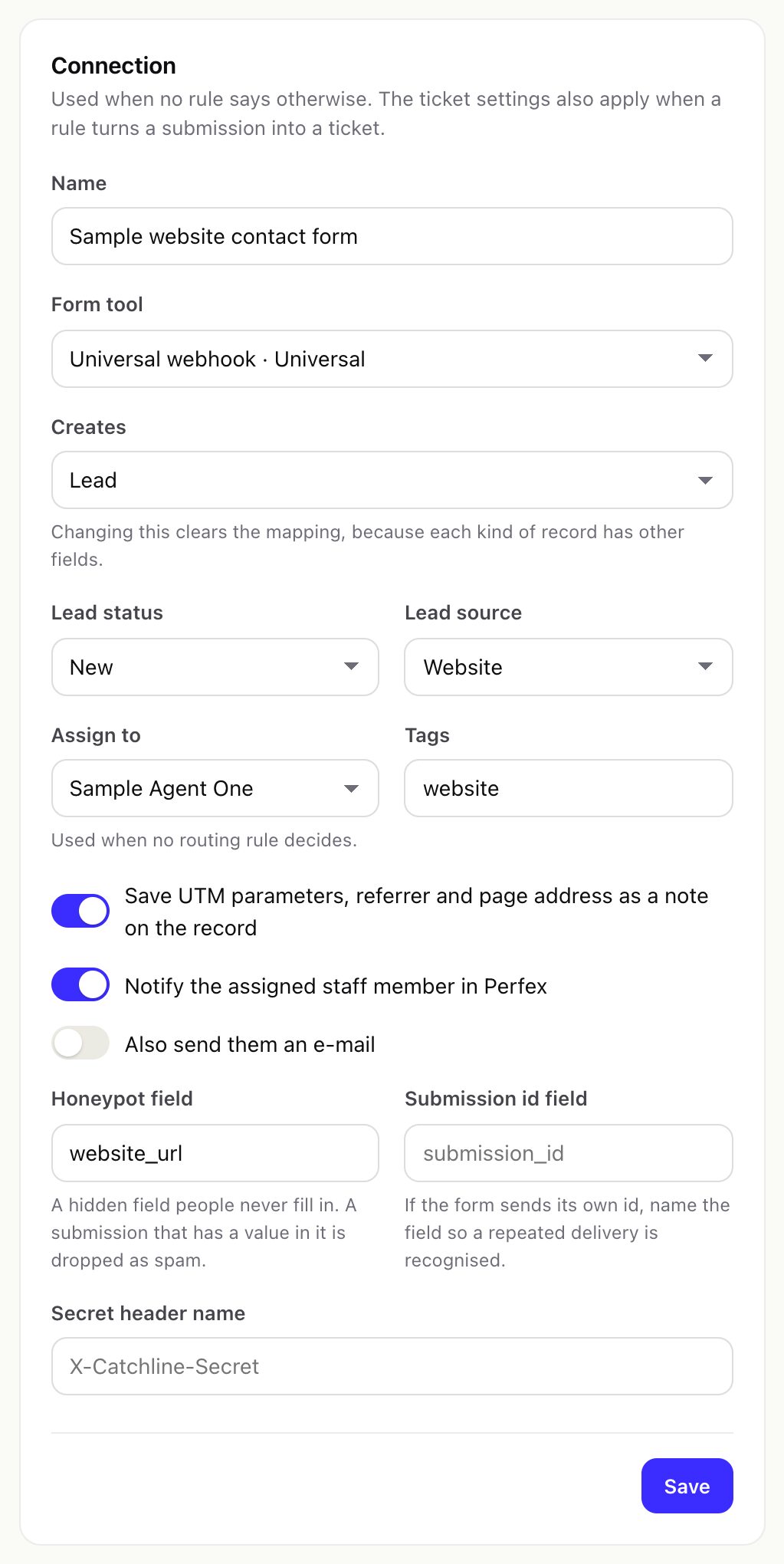
- Defaults for new records: lead status and source, who it is assigned to, tags; for tickets the department (Perfex needs one), priority and a subject when the form sends none. Rules can change them per submission.
- Save UTM parameters, referrer and page address as a note on the record.
- Notify the assigned staff member in Perfex, and optionally by e-mail.
- Ask the AI to summarise long messages (only with the AI helper on; proposals wait in the AI queue).
- Attach tickets to an existing contact with the same e-mail. Anyone can type somebody else's e-mail address into a form, so Catchline attaches a ticket only when the request was signed (signature or secret header verified). Leave it off for public forms.
- Honeypot field: the name of a hidden field in your form that people never fill; a submission with a value in it is dropped as spam.
- Submission id field: if the tool sends its own id, name the field so a repeated delivery is recognised.
Changing what the source creates clears its mapping, because leads, customers and tickets have different fields.
05Mapping: which answer goes where
On the Mapping tab choose, for each Perfex field, which form field fills it. Custom fields of leads, customers, contacts and tickets are in the same list. Each row shows a sample value from the last submission.
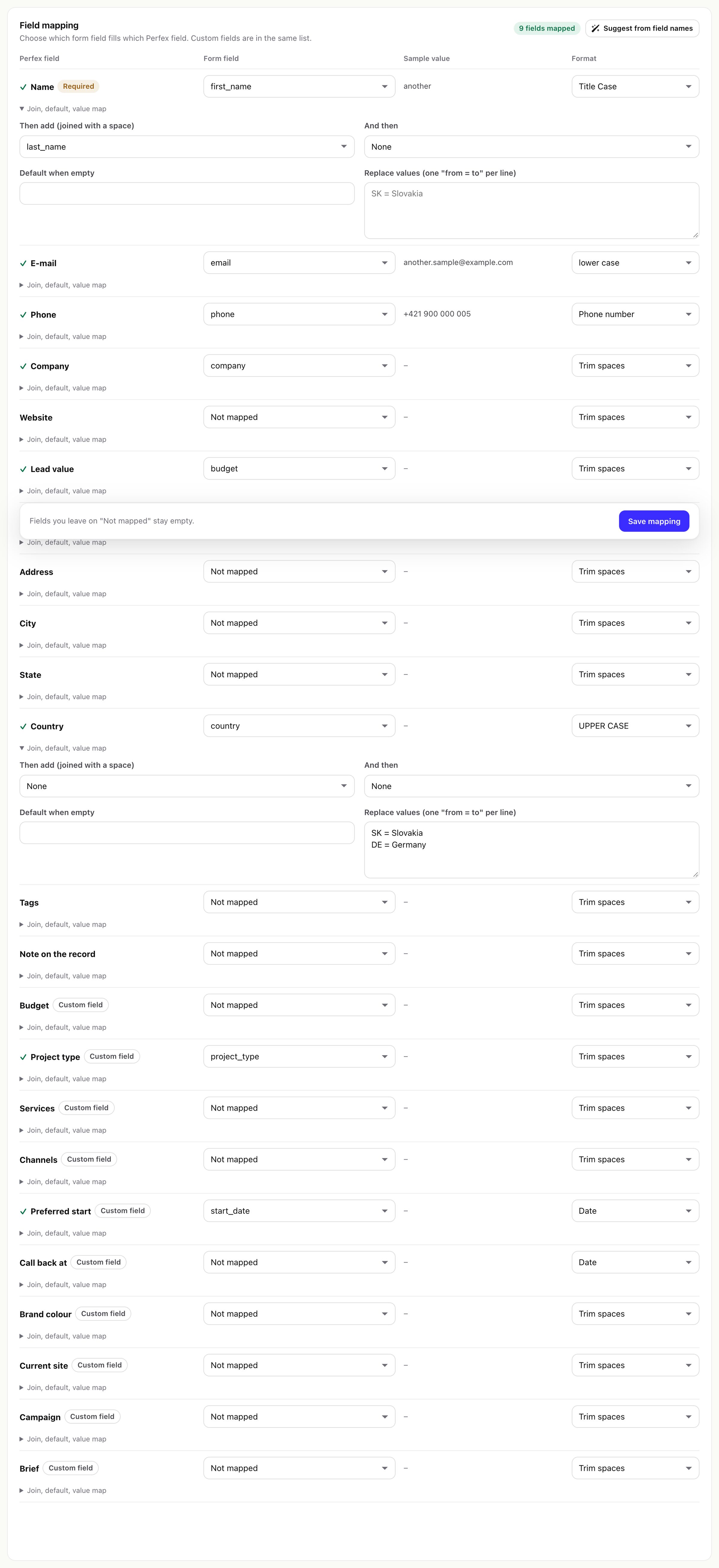
- Format: as sent, trim spaces, lower case, UPPER CASE, Title Case, phone number, date.
- Join, default, value map: add up to two more fields (joined with a space), a value used when the answer is empty, and value replacements, one
from = toper line. - Suggest from field names fills the rows Catchline can recognise by name. Ask AI to suggest (AI helper on) proposes a mapping that waits in the AI queue.
- A lead needs a Name, E-mail or Company; a customer needs a company or the contact's name or e-mail; a ticket needs an e-mail address. A submission without them fails with a message that says what to map.
06Rules of a source
The Rules tab decides who gets a submission and how it is labelled. Rules are optional and run from the top; the first active rule that matches decides, and the log shows which one it was.
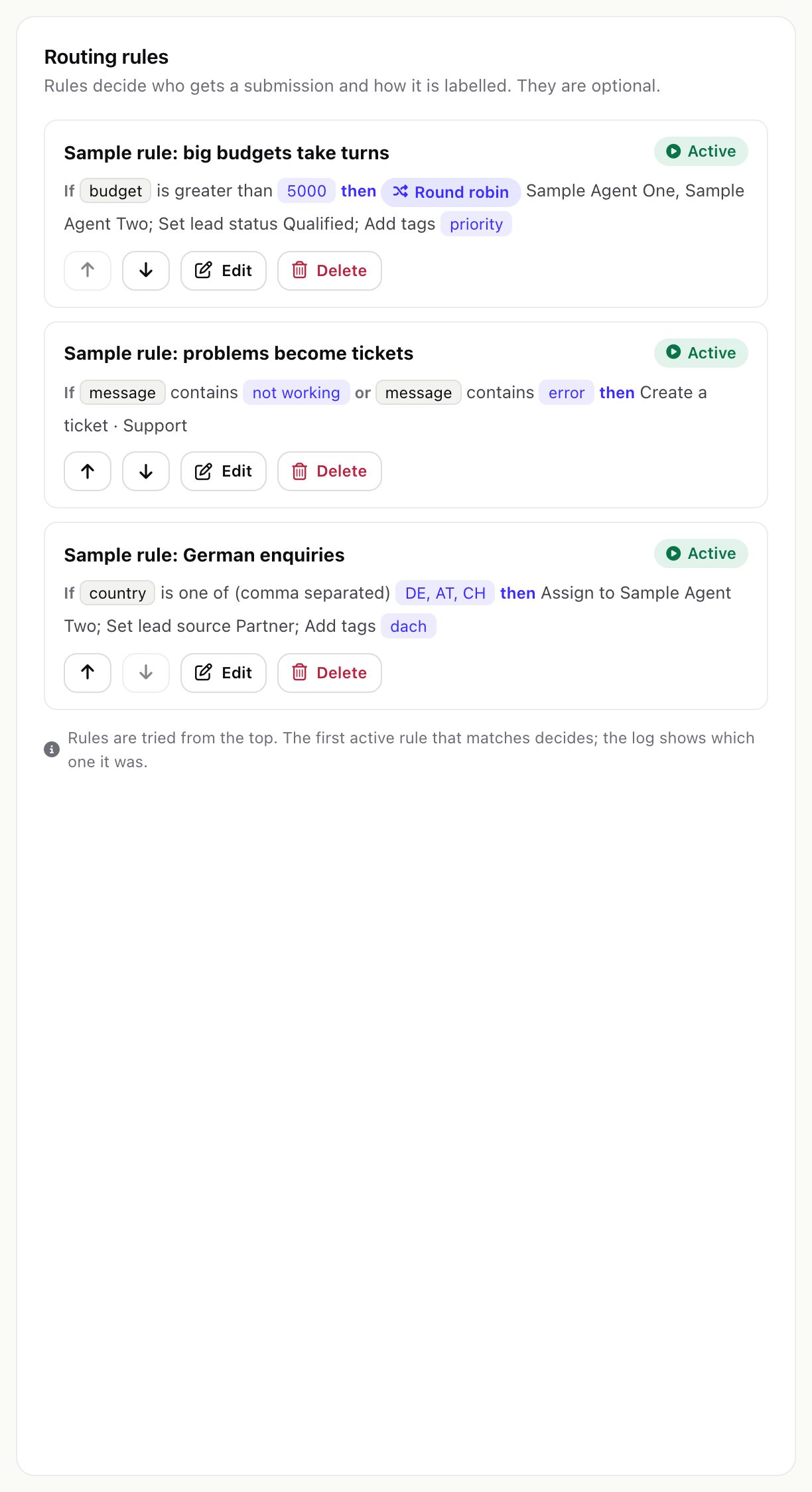
- Conditions look at the form's answers: is, is not, contains, does not contain, starts with, ends with, is empty, is filled in, is greater than, is less than, is one of (comma separated). They combine with "all" or "any" and ignore upper and lower case. A rule without conditions applies to every submission.
- Who gets the lead: one person, or a routing strategy (round robin, weighted, territory, language, interest, fewest open leads, claim pool). See Routing.
- And also: set the lead status and source, add tags, or create a ticket instead of the source's usual record.
07Duplicates
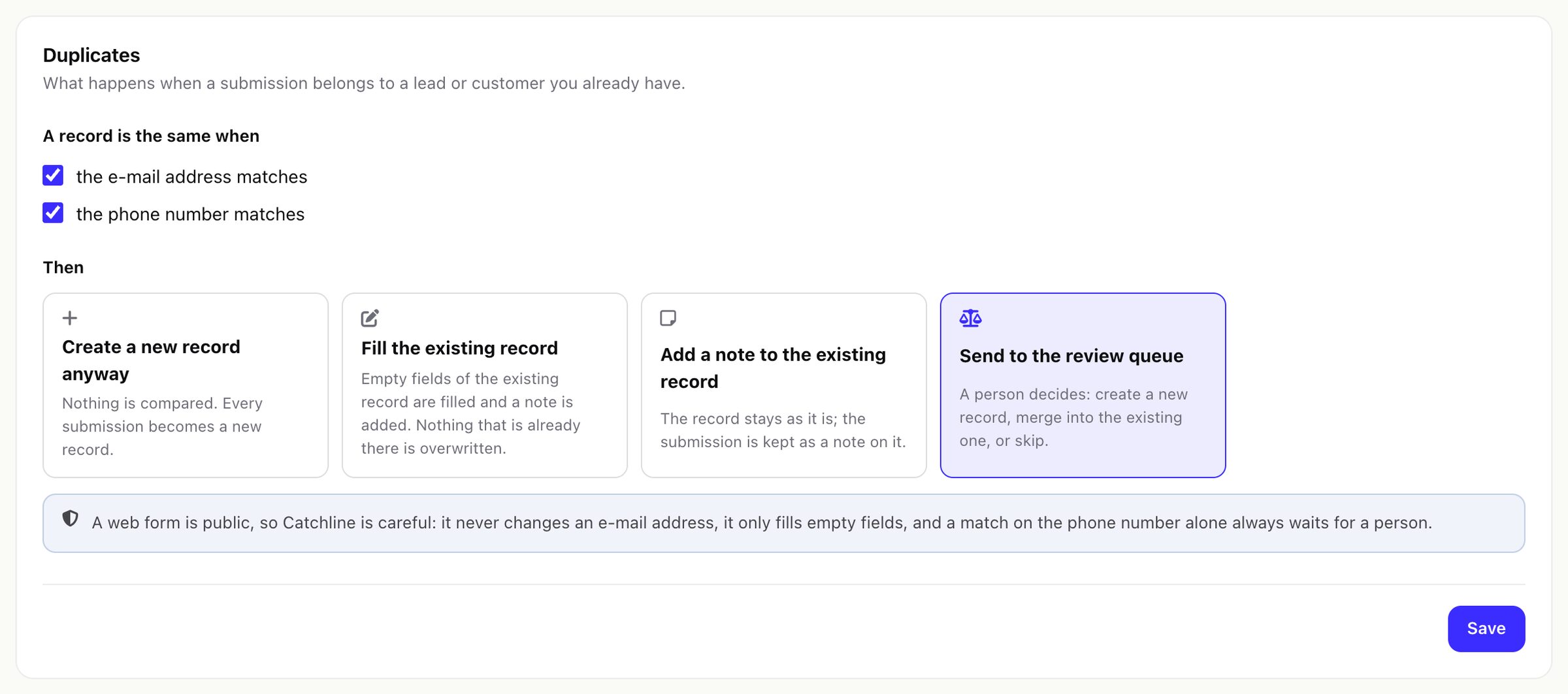
The Duplicates tab says what happens when a submission belongs to a lead or customer you already have. A record is the same when the e-mail address matches, the phone number matches, or both (you choose).
| Choice | What happens |
|---|---|
| Create a new record anyway | Nothing is compared. |
| Fill the existing record | Empty fields of the existing record are filled and a note is added. Nothing already there is overwritten. |
| Add a note to the existing record | The record stays as it is; the submission is kept as a note on it. |
| Send to the review queue | A person decides: create new, merge into the existing one, or skip. |
A web form is public, so Catchline is careful: it never changes an e-mail address, it only fills empty fields, and a match on the phone number alone always waits in the review queue. Tickets are never merged. New built forms start with "Fill the existing record" (Settings > Forms and spam > Built forms: a returning visitor).
08Test before you go live
The Test tab has a dry test: paste a sample payload (JSON) and see what the source would do with it (the values after formatting, the rule that would match, missing required fields, matching records). A dry test stores and creates nothing.
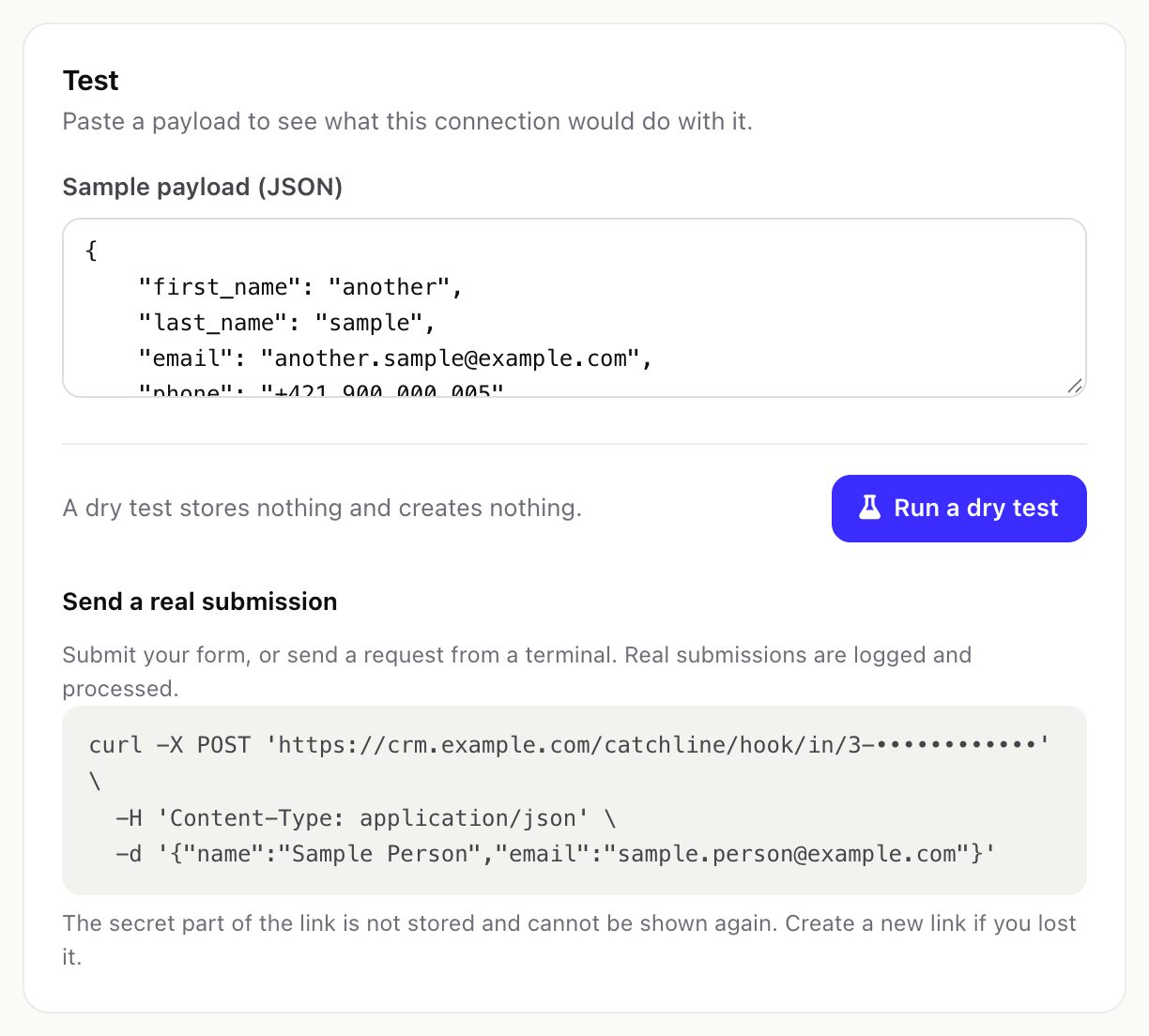
For a real test, submit your form, or send a request from a terminal as shown, with your own link:
curl -X POST 'https://crm.example.com/catchline/hook/in/3-YOUR-SECRET' \
  -H 'Content-Type: application/json' \
  -d '{"name":"Sample Person","email":"sample.person@example.com"}'
Real submissions are logged and processed. The newest ones of the source are listed under the test.
09Switch off, delete
- Switch off a source and its link answers "switched off"; nothing is captured until you switch it on again.
- Delete this connection removes the source with its rules and its submission log (and the files of those submissions). Leads, customers and tickets it created stay in Perfex. A built form's source is removed with the form.