
Build the form once.
Steps, logic, design and languages included.
Create a form from a template, add and arrange fields, show fields on a condition, match the look of your website, translate it, try it in the preview and publish a version.
01The forms list
Catchline > Forms lists your forms with their status, what they create, and their views, answers and conversion (answers per view) of the last 30 days. From here you edit, duplicate, archive or delete a form.
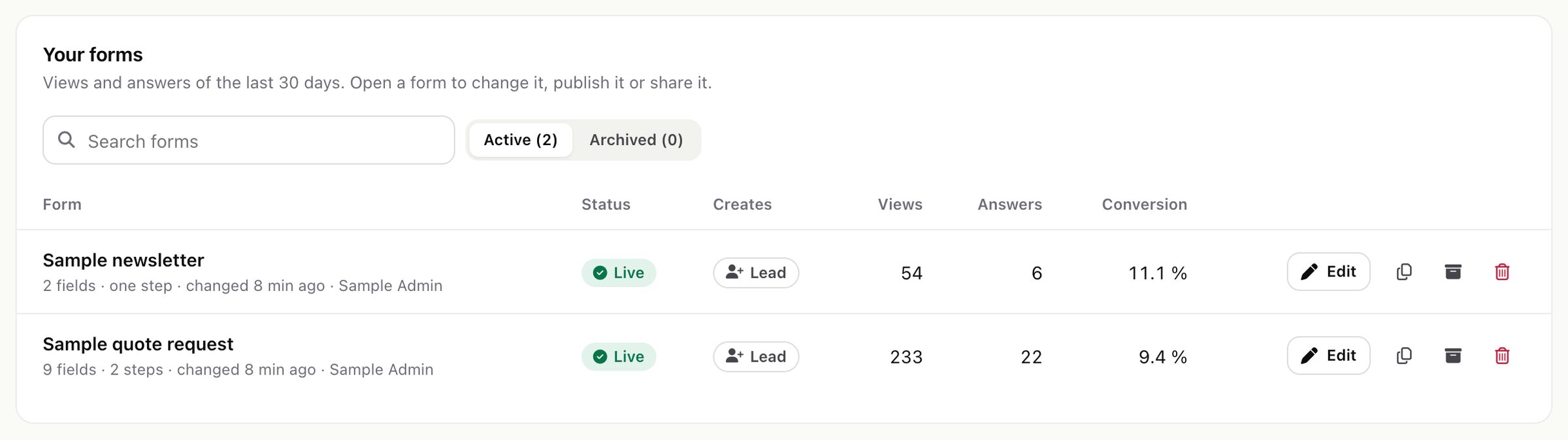
- Duplicate makes a draft copy with its own link and its own log.
- Archive stops a form from taking answers. Its answers and leads stay, and you can bring it back.
- Delete works only for a form that never received an answer. Archive the others.
02Create a form
- Press New form. You need the Create permission of Catchline.
- Name it. The name also makes the form's link, for example
catchline/f/website-contact-form. See the note under Hosted page about where the name shows. - Start from a template and change everything later: Blank form (one e-mail field), Contact form, Quote request (the service asked for is saved as a lead tag), Call booking (two steps), Webinar sign-up (with a consent checkbox), Job application (with a CV upload) or Complaint (opens a support ticket).
Every form is also a source: its routing, duplicate settings and log live there, and its leads go through the same pipeline as every other lead.
03Build: fields and steps
The Build tab has three columns: the fields you can add, the form with its steps, and a live preview.
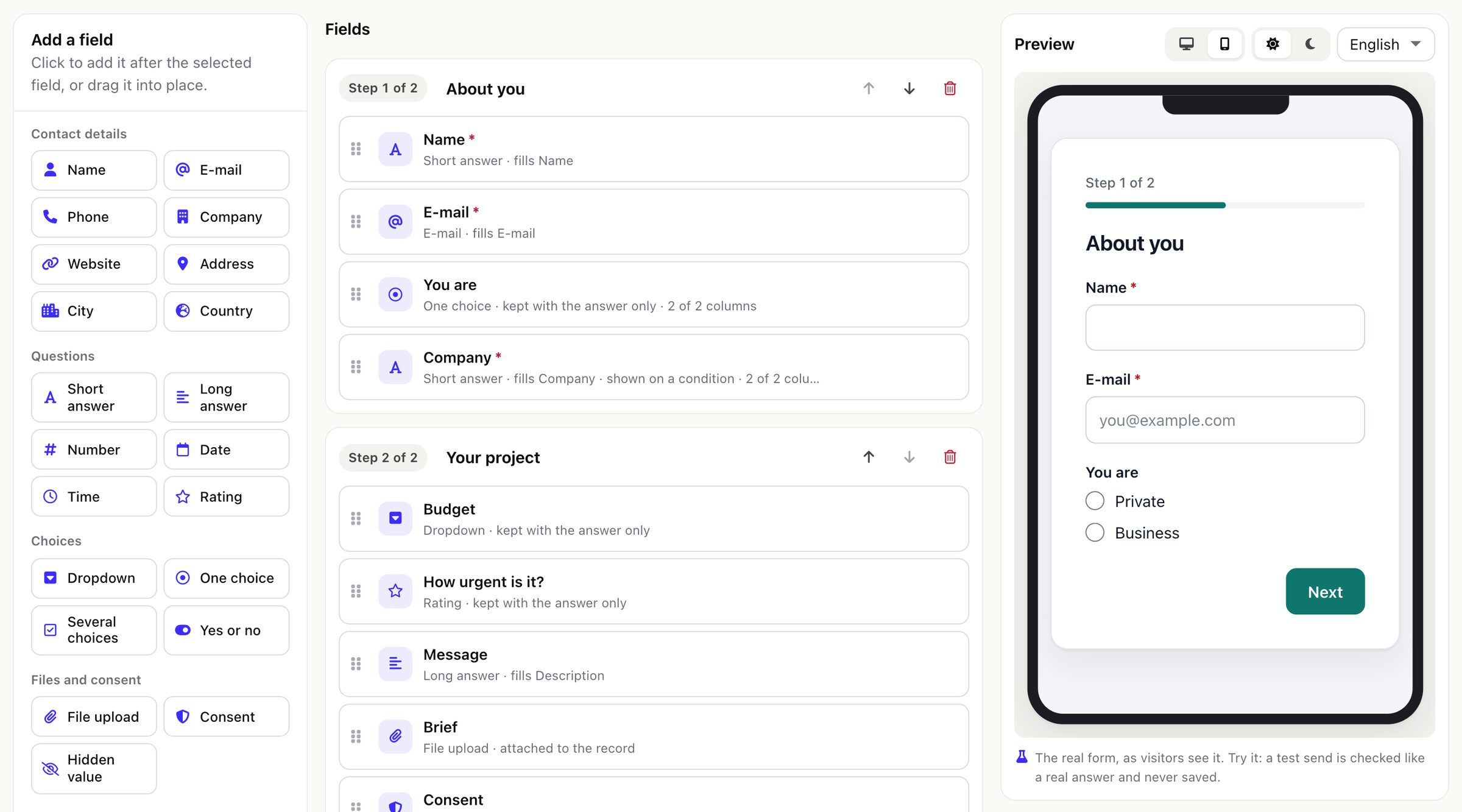
| Group | Fields |
|---|---|
| Contact details | Name, E-mail, Phone, Company, Website, Address, City, Country |
| Questions | Short answer, Long answer, Number, Date, Time, Rating |
| Choices | Dropdown, One choice, Several choices, Yes or no |
| Files and consent | File upload, Consent, Hidden value |
| Text and headings | Heading, Text (shown to visitors, not an answer) |
- Add a field by clicking it (it goes after the selected field) or drag it into place.
- Move fields by dragging, with the arrow buttons, or with the keyboard: Space picks a field up, the arrow keys move it, Space drops it, Escape puts it back.
- Steps: press Add a step for a multi-step form with a progress bar. Each step can have a title.
- Changes save themselves while you work ("All changes saved"). The live form changes only when you press Publish.
Limits: up to 100 fields per form and 100 options per choice field.
04Field settings
Click a field to open its settings.
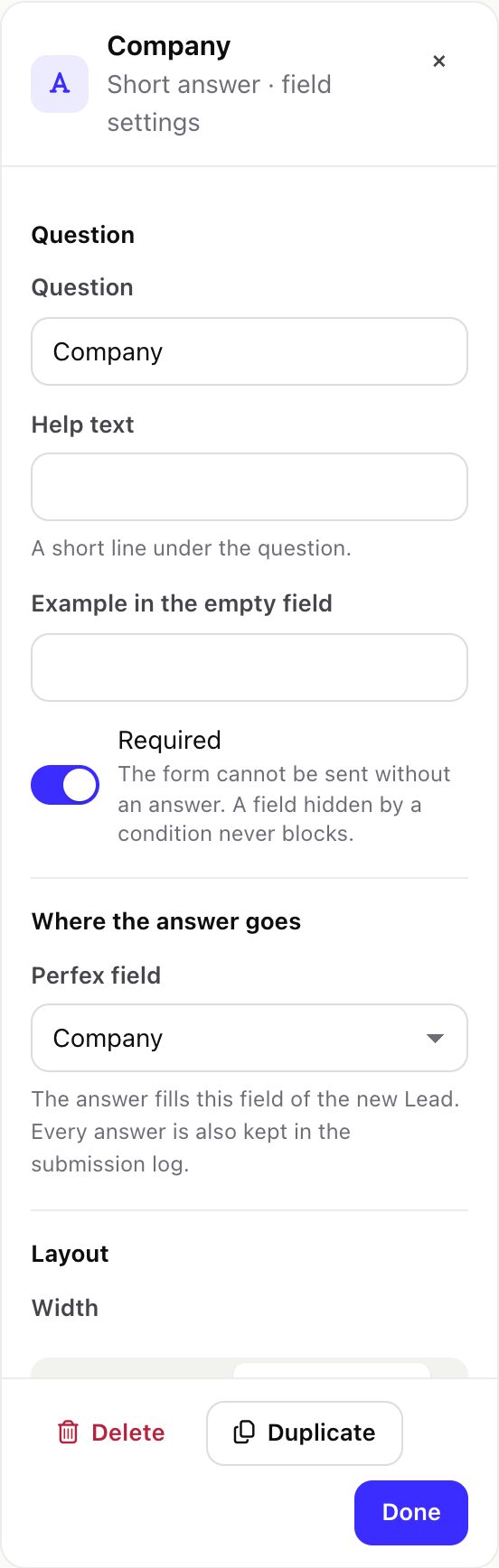
- Question, help text, example (the grey text in the empty field) and Required.
- Options for choice fields; Paste a list replaces them with one option per line.
- Number: smallest and largest number. Rating: number of stars. Phone: a default country code that is added to numbers typed without
+. - File upload: accepted types (PDF, images, office documents, text and CSV) and the largest file, up to 20 MB. See Uploaded files.
- Hidden value: filled from the page address (
?key=value) or from its default value. Visitors never see it. - Perfex field: where the answer goes in the new lead, customer and contact, or ticket, custom fields included. "None" keeps it with the answer only. Up to three form fields can fill the same Perfex field (they are joined). Every answer is also kept in the submission log.
- Width: how many columns the field takes when the form has two or three columns. On phones every field takes the whole width.
- Field key (Advanced): the name of the answer in webhooks, exports and links. Lower-case letters, digits and
_. Changing it on a published form starts a new column in exports and webhooks.
05Logic: show a field on a condition
On the Logic tab, or in a field's settings, choose Only when… to show a field after a matching answer, for example company details only for businesses. Rules: is, is not, contains, is one of, is more than, is less than, is answered. Several conditions combine with "all of these are true" or "any of these is true".

- The CRM checks the conditions again when the form arrives, so nobody can skip them.
- A required field that is hidden never blocks sending, and an answer posted for a hidden field is dropped.
- A step whose fields are all hidden is skipped.
- A condition looks only at fields before it, so a form never loops.
06Design
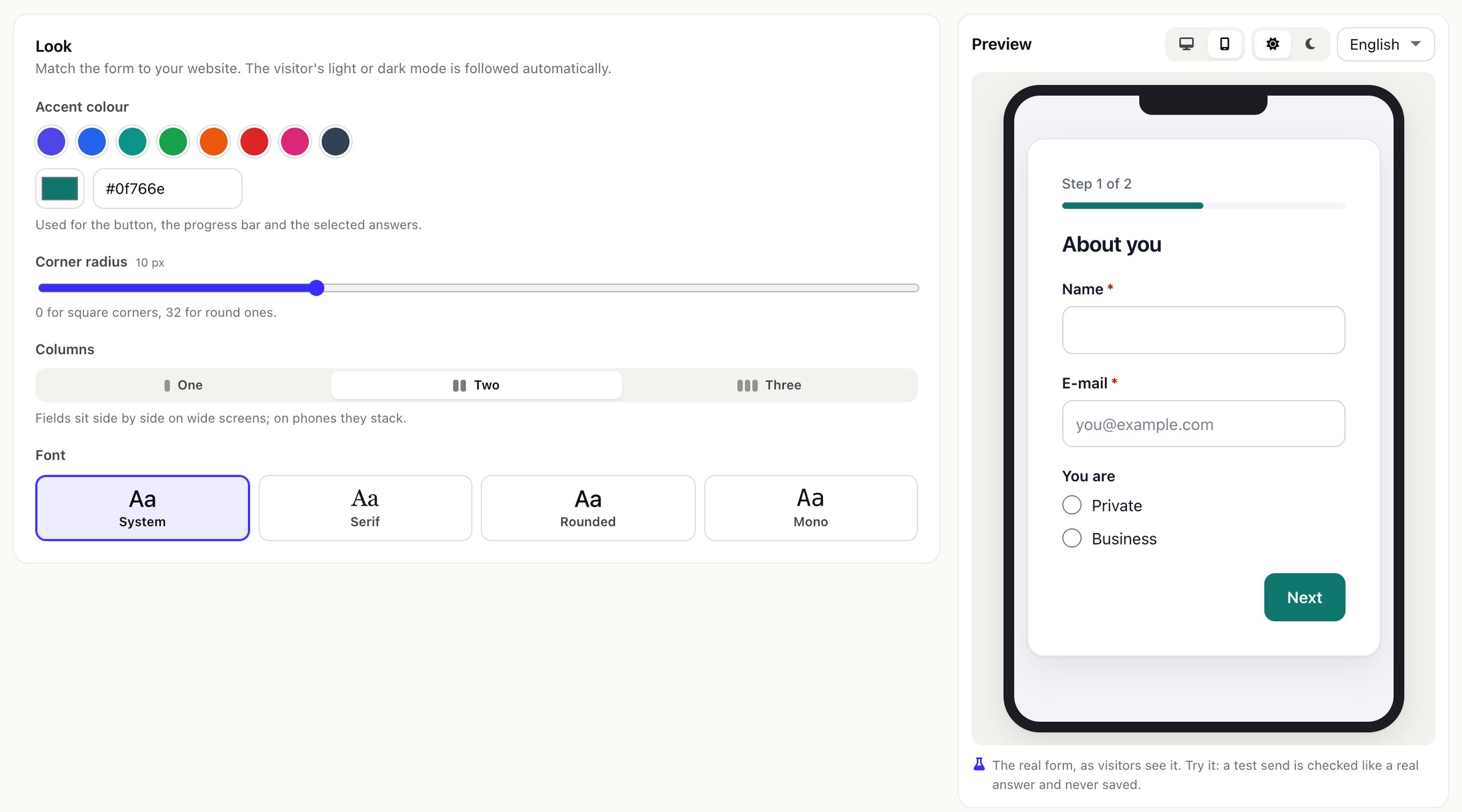
The Design tab sets the accent colour (8 ready colours or your own colour code), the corner radius (0 to 32 pixels), one, two or three columns, and the font (System, Serif, Rounded or Mono). The form follows the visitor's light or dark mode by itself.
The form is drawn inside its own isolated area (a shadow root), so the CSS of your website cannot break it and the form's CSS cannot change your page.
07Settings: what an answer creates
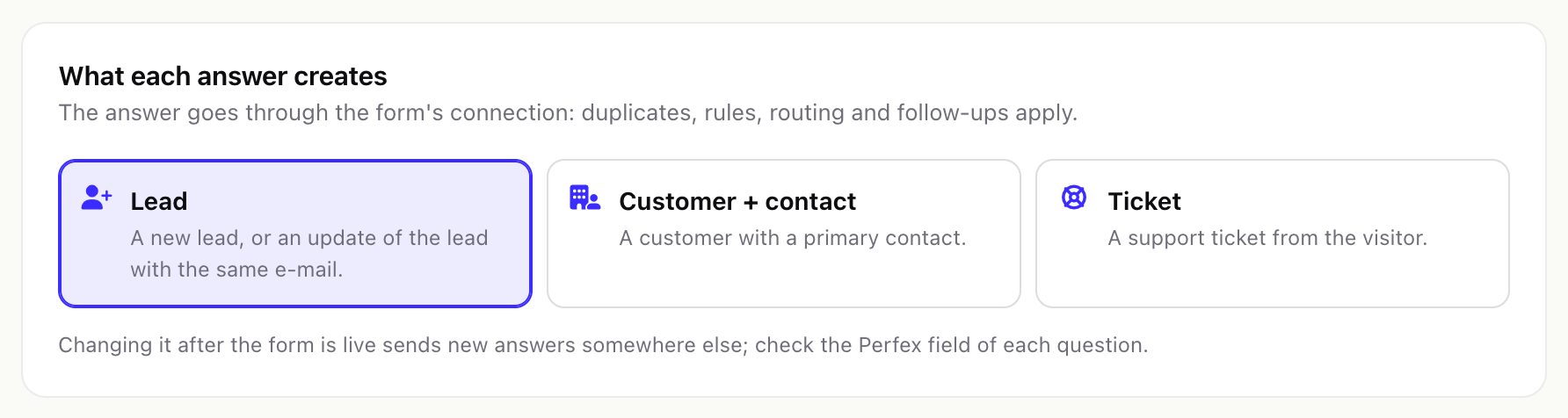
- Lead: a new lead, or an update of the lead with the same e-mail address (see Duplicates).
- Customer + contact: a customer with a primary contact.
- Ticket: a support ticket from the visitor. Choose the department in the form's source.
After sending shows a message, or sends the visitor to a page of your website (an address starting with https:// or http://).
Changing what a live form creates sends new answers somewhere else; check the Perfex field of each question afterwards.
08Consent (GDPR)
Add the consent checkbox under Settings > Consent. You write the consent text, give it a version number and choose whether the box must be ticked.
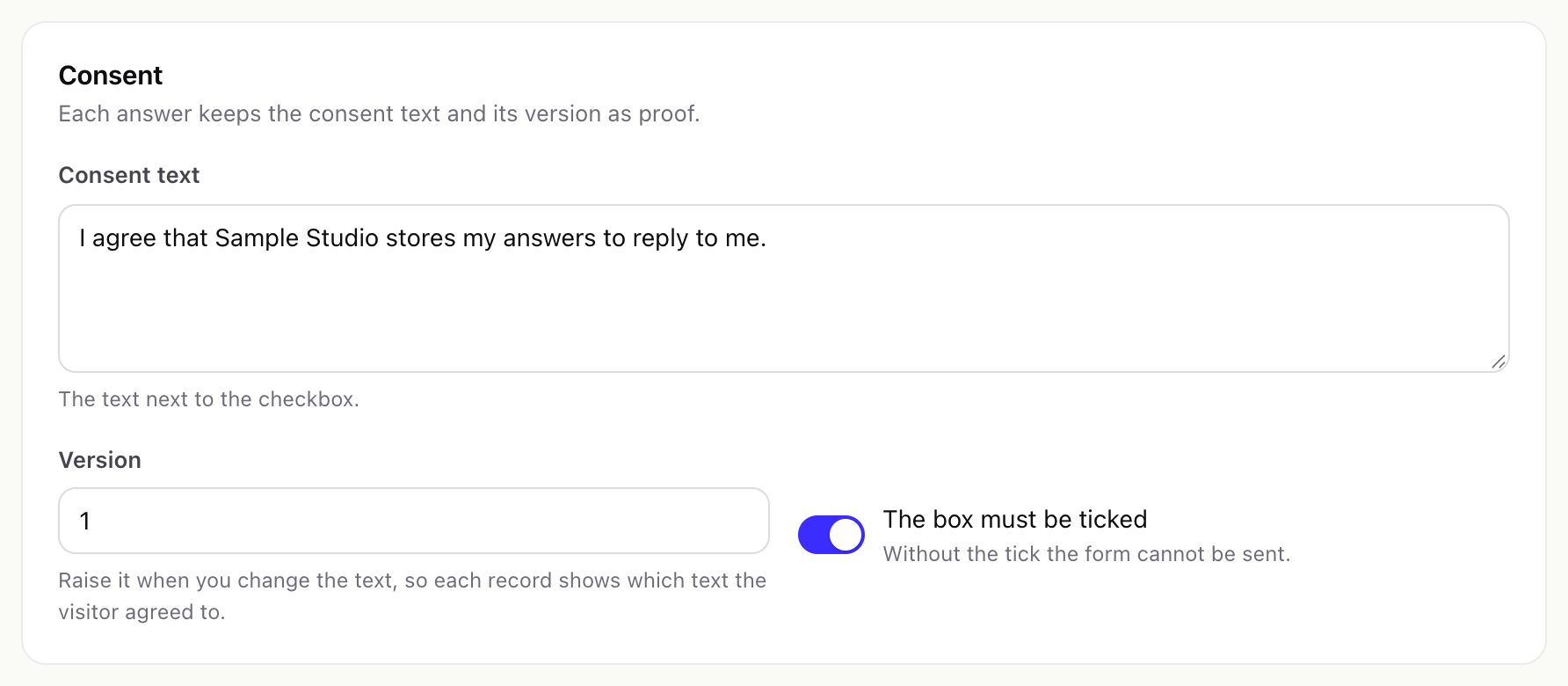
For every answer with a ticked box Catchline keeps a consent record: the e-mail address, the exact text shown with its fingerprint, the version, the time and a fingerprint (hash) of the visitor's IP address. Raise the version whenever you change the text, so each record shows which text the visitor agreed to. Catchline records the consent; whether you need consent, and for what, is a legal question for your business.
09Unfinished answers
Settings > Unfinished answers (off by default) keeps the answers of each finished step of a multi-step form, so the funnel report shows where visitors stop. No lead is created from them.
When it is on, the answers of every finished step are stored, with the e-mail address if one was typed, before the visitor presses Send. They are deleted when they have not changed for the number of days in Settings > Forms and spam > Keep partial answers for (default 30). Switch it on only when your privacy notice covers it.
10Languages
On the Languages tab choose the main language of the form and add other languages (about 40 are offered). The translations table lists every text a visitor reads: step titles, questions, help texts, examples, options, the message after sending, the consent text, and the form's buttons and messages (Next, Back, Send, "Step 1 of 2", the error messages). An empty translation shows the main language (for buttons and messages: the CRM's text). Arabic, Hebrew, Persian and Urdu are shown right to left.
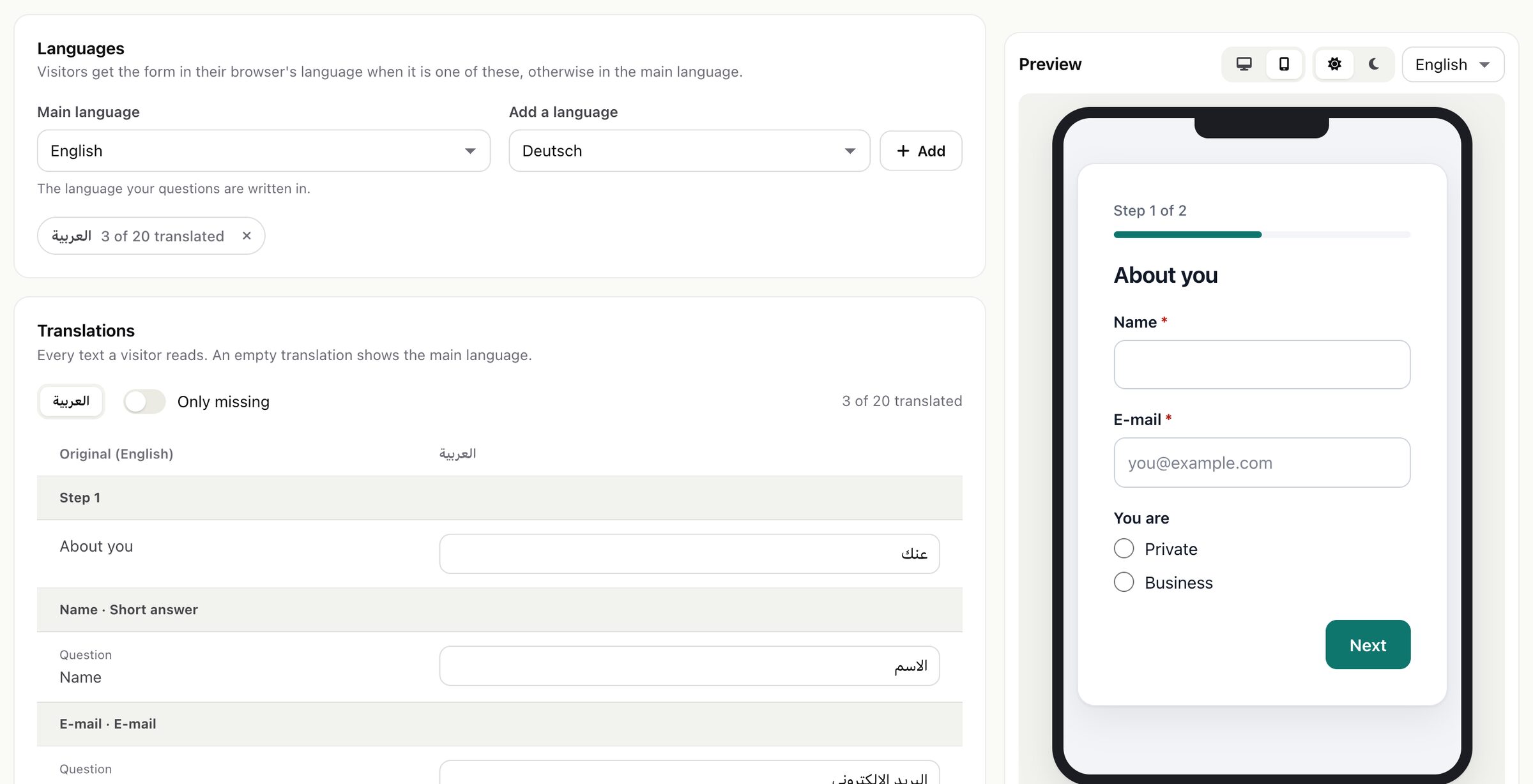
Visitors get the form in their browser's language when it is one of the form's languages, otherwise in the main language. The embed code can also fix the language. See Languages of the public form.
11Preview and test
The preview next to the editor is the real form as visitors see it, at desktop or phone width, light or dark, in each language. You can fill it in and press Send: a test send is checked like a real answer (required fields, logic, file rules) and never saved. The captcha, if you chose one, is left out of the preview.
12Publish and versions
Press Publish to make the current draft live. Every publish keeps the whole form as a numbered version. The header shows whether the form is a draft, live, live with unpublished changes, published but switched off, or archived. Publishing refuses a form with problems and shows each problem where it is.

History > Load into the editor puts an older version into the draft. The live form does not change until you publish again. If two people save the same form, the second one is told to reload instead of overwriting the other's changes.
13Uploaded files
- Allowed types: PDF, JPG, PNG, GIF, WebP, HEIC, Word, Excel, PowerPoint, OpenDocument, RTF, TXT and CSV. The server reads each file's real type from its content (PHP
fileinfo) and refuses a file whose content does not match its extension. - Files are stored in
uploads/catchline-private/<submission>/under a random name, never served directly, and shown only to staff. - When the form creates a lead, the file is also attached to the Perfex lead (not visible to customers). For customers and tickets the file stays in Catchline's storage and is listed on the submission.
- Catchline's copy is deleted with its submission: by the retention period, by Erase, or when you delete the submission or the source. The copy attached to a Perfex lead is a Perfex file and stays until you delete it in Perfex.