Leads from your ads.
In Perfex within seconds.
Connect Facebook and Instagram Lead Ads through your own Meta app and Page token, and Google Ads lead form assets through their webhook and key. Both run through the same mapping, duplicate check, routing and follow-up as every other lead.
01How Lead Ads reach Perfex
When someone sends one of your Facebook or Instagram lead forms, Meta sends a short notification (only the lead's id) to your CRM. Catchline checks its signature with your App Secret, answers Meta at once, and reads the lead's answers from the Graph API with your Page access token. Instagram lead forms run through the Facebook Page of the ad, so they arrive the same way; the platform is kept with the submission.
Use one Catchline source per Facebook Page. Every lead form of that Page arrives through it.
A Meta developer account, a Meta app of your own, admin access to the Facebook Page, and a Page access token with the permissions below. These steps happen at Meta and change from time to time; the links point to Meta's current pages. Catchline was tested against the formats in Meta's documentation, not against a live Meta app.
02Connect Facebook and Instagram Lead Ads
Add a source Facebook & Instagram Lead Ads under Catchline > Sources. Its Setup tab shows a four-step wizard.
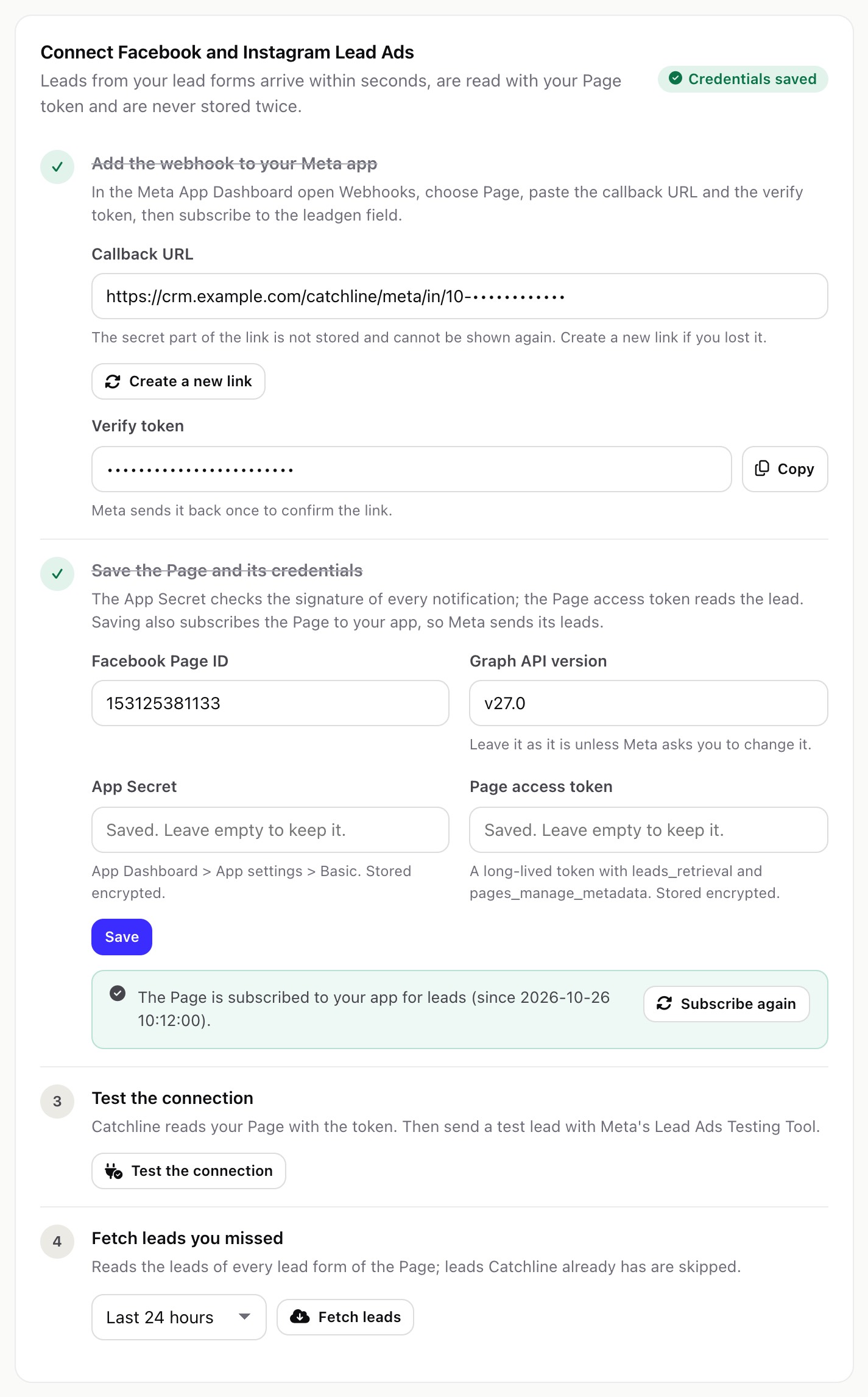
- Copy the callback URL and the verify token. The callback URL looks like
https://crm.example.com/catchline/meta/in/10-<secret>and is shown in full only once; if you lose it, press Create a new link and update it at Meta. - Add the webhook to your Meta app. In the Meta App Dashboard open Webhooks, choose the Page object, paste the callback URL and the verify token, and subscribe to the
leadgenfield. Meta calls the link once to check the token. See Meta: webhooks getting started. - Save the Page and its credentials in Catchline: the Facebook Page ID (5 to 25 digits), the App Secret (App Dashboard > App settings > Basic) and a long-lived Page access token with
leads_retrievalandpages_manage_metadata. Leave the Graph API version atv27.0unless Meta asks you to change it. Both secrets are stored encrypted; a blank field keeps the saved value. - Check that the Page is subscribed to your app. Meta sends a Page's leads only to apps the Page is subscribed to. Saving the Page and its credentials does this for you: Catchline sends, with your Page access token,
and the wizard then shows The Page is subscribed to your app for leads with the time, or Meta's error message (for example a token withoutPOST https://graph.facebook.com/v27.0/<PAGE_ID>/subscribed_apps?subscribed_fields=leadgenpages_manage_metadata). Fix the cause and press Subscribe again; press it too after you save a new Page token. See Meta: Lead Ads webhooks. - Test the connection. Catchline reads your Page with the token and shows its name. Then send a test lead with Meta's Lead Ads Testing Tool and look for it in the submission log.
- Map the fields. Meta's fields arrive by their names, for example
full_name,email,phone_numberand the keys of your own questions. Open the source's Mapping tab.
To receive real leads (not only test leads), your Meta app usually has to be live and the permissions approved through Meta App Review, and the person whose token you use needs access to the Page's leads (Meta Business settings, leads access). Without this, Graph API reads fail and the submission log shows Meta's error.
03Fetch leads you missed
Step 4 of the wizard reads the leads of every lead form of the Page for the last 24 hours, 3 days, 7 days or 30 days. Leads Catchline already has are skipped. Use it after the CRM was down, after the token expired, or right after you connect the Page.
If reading a lead fails (expired token, Meta error, network), Catchline answers Meta with success anyway, logs the lead as failed with Meta's reason, and reads it again on the cron after 5, 30, 120, 360 and 720 minutes. A new delivery from Meta or Fetch leads also tries again. Meta itself redelivers a notification for up to 36 hours; a lead is never stored twice.
04What is kept with a Lead Ads lead
With the answers Catchline keeps the Meta lead id, the form, ad, ad set and campaign ids, the platform and whether the lead was organic. The Meta lead id is what the Conversions API uses to match a later event to the lead (see Conversions).
05Connect Google Ads lead forms
Add a source Google Ads lead forms. Its Setup tab shows the webhook link and a guide.
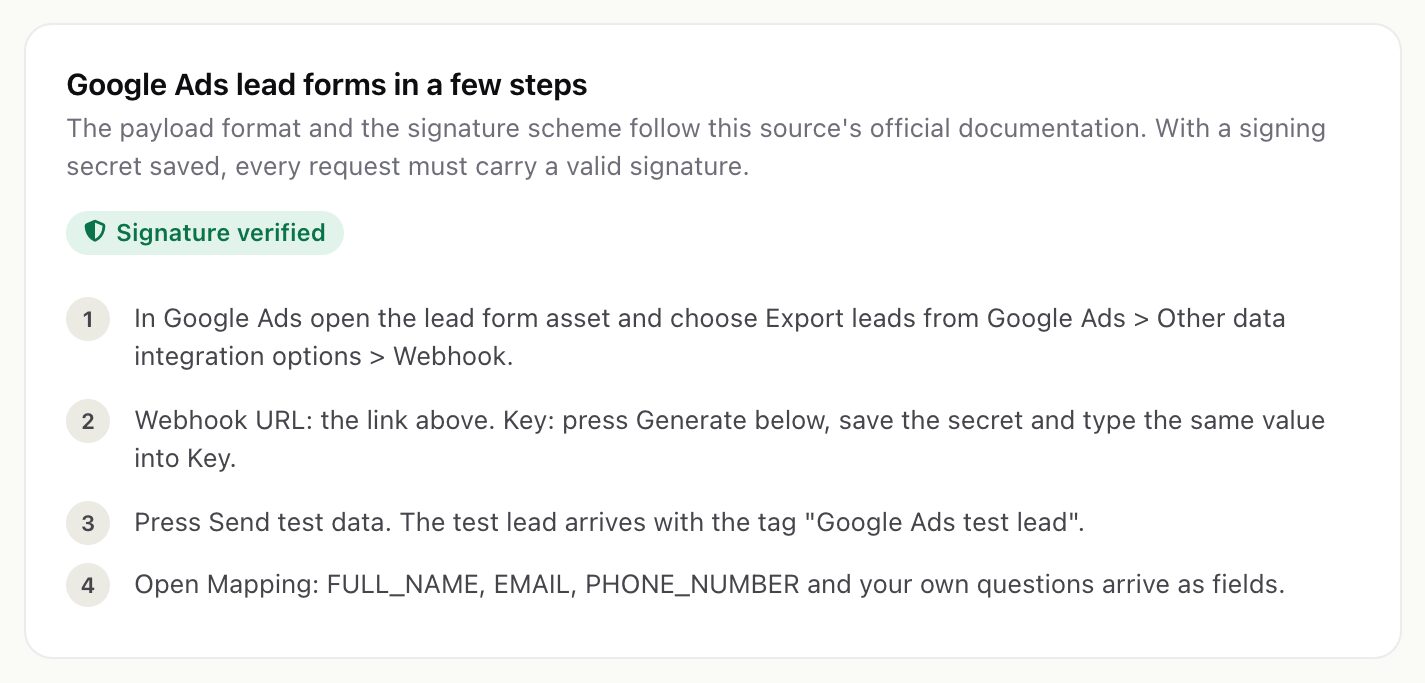
- In Google Ads open the lead form asset and choose Export leads from Google Ads > Other data integration options > Webhook.
- Webhook URL: paste the source's link. Key: press Generate in Catchline, save the secret, and type the same value into Google's Key field. Every lead then has to carry that key.
- Send test data in Google Ads. The test lead arrives with the tag "Google Ads test lead".
- Map the fields:
FULL_NAME,EMAIL,PHONE_NUMBERand your own questions arrive as fields.
Without a saved key, Google leads are accepted on the secret link alone. Save the key. The Google click id (gcl_id) and the campaign, ad group and form ids are kept with the lead; the click id is what the Google offline conversion file uses. See Google: lead form webhook.