
Install on a copy first.
Then connect one source at a time.
Requirements, upload and activation, the Perfex cron job, staff permissions, the first run, updates, deactivation and uninstall.
01Requirements
| What | Needed | Why |
|---|---|---|
| Perfex CRM 3.2 or newer | Required | Bought separately. The download does not include Perfex. |
| PHP 8.1 or newer | Required | The System check fails on older versions. |
PHP extensions curl, mbstring, openssl, json | Required | Lead Ads, conversions, captcha checks, webhooks and AI calls; texts in every language; encrypted secrets. |
PHP extension fileinfo | Required for file uploads | The type of an uploaded file is read from its content. Without fileinfo every upload in a form is refused. The System check does not test it. |
stream_socket_client not disabled | For reply mailboxes | Reply mailboxes are read with the module's own IMAP client; the PHP imap extension is not needed. |
| MySQL or MariaDB | Required | The database your Perfex already uses. The module adds 35 tables with your Perfex table prefix. |
| The Perfex cron job | Required | Retries, the lead watcher, reply timers, claims, sequences, reply mailboxes, outgoing webhooks, conversions, score decay and clean-up all run on it. |
A public https:// address for the CRM | Required for most sources | Meta, Google Ads and the form tools post leads to your CRM. Hosted forms, embeds and unsubscribe links are public pages too. |
| Outgoing e-mail set up in Perfex | Required for sequences and alerts | Follow-up e-mails and e-mail alerts are sent through Perfex's own e-mail settings (Setup > Settings > Email). |
A writable uploads/ folder | Required for uploads and CSV import | The module keeps form uploads and CSV files waiting for import in uploads/catchline-private/. |
PHP memory_limit 128M or more, uploads of 10 MB | Recommended | The System check warns below 128M and when PHP accepts uploads smaller than 10 MB (the CSV limit). |
Composer, Node.js and command-line access are not needed to install the module.
02What is in the download
upload/catchline.zip: the module. This is the file you upload in Perfex.documentation/: this documentation, to open offline.licenses/THIRD-PARTY-LICENSES.md: credits and licences.README.md: a short pointer to these steps.
Do not upload the whole download as a module. Unzip it first and use upload/catchline.zip.
03Install and activate
- Back up. Take a backup of the CRM files and the database you can restore. Try the module on a staging copy of your CRM first if you have one.
- Check the uploads folder. The web server user must be able to write to the
uploads/folder of your Perfex. Catchline createsuploads/catchline-private/the first time a form receives a file or you preview a CSV file. - Upload the module. In Perfex open Setup > Modules, choose Upload module, pick
upload/catchline.zipand install it. If your host blocks uploads, unzip the file on your computer and copy thecatchlinefolder into themodules/folder of your CRM over FTP, so thatmodules/catchline/catchline.phpexists. - Activate. In Setup > Modules press Activate next to Catchline - Lead Capture, Routing And Follow-up. Activation creates the module's 35 tables and its settings and a random signing secret. It does not change Perfex's own tables or files. The AI helper starts switched off.
- Give staff access. See Staff permissions. Administrators have every permission already.
- Open the module. The Perfex sidebar now has a Catchline menu. Open Catchline > Setup; it starts on Getting started.
- On nginx: add the deny rule for
uploads/catchline-private/from Security hardening.
04The cron job
Catchline does its timed work on the Perfex cron job; there is no separate cron command for the module. Set up the Perfex cron as Perfex shows it under Setup > Settings > Cron Job. Run it every 5 minutes or more often: reply timers, claim offers and Lead Ads retries are only as precise as the cron.
On every run the module:
- retries failed submissions that are due (after 5, 30, 120 and 360 minutes, up to the Automatic retries setting),
- removes payloads older than the retention period and old unfinished answers,
- writes message summaries when the AI helper and automatic summaries are on,
- looks at the Perfex leads Catchline captured for status changes, notes, contacts, activity and conversion to a customer,
- checks reply timers (reminder, late, reassign, escalate) and expires claim offers,
- sends the follow-up e-mails and tasks that are due and reads the reply mailboxes,
- sends outgoing webhooks and Meta conversion events, with retries,
- lets behaviour points of scores fade, reads Lead Ads leads again whose first reading failed, and clears old visit counters.
Each step has a time budget, so a busy run finishes on the next one. The System check shows when the cron last ran Catchline and warns after 30 minutes without a run.
05Staff permissions
Catchline adds its own permissions to Perfex. Set them per staff member (the staff member's Permissions) or per role. Administrators can do everything.
| Permission (as shown in Perfex) | What it allows |
|---|---|
| View | Opens the dashboard, forms, sources, the submission log, the review queue, lead panels, scoring and routing, the sales team, sequences and reports. Previews forms. Exports report CSV files. |
| Create connections | Adds sources, forms (also by duplicating), sequences and CSV imports. With the AI helper on: asks for form drafts and e-mail drafts. |
| Edit connections, replay and decide | Changes sources, mappings, rules, duplicate settings and secrets; edits, publishes and archives forms, variants and placements; replays submissions; decides in the review queue; edits score rules, sales team entries, sequences and ad costs; approves or rejects AI proposals. |
| Delete | Deletes sources, forms without answers, submissions from the log, sequences and ad costs. |
| Claim leads offered to a pool | Sees Claim leads and takes leads a routing rule offers to a pool the person is in. A staff member with only this permission sees only that page. |
Settings (API keys, captcha keys, the Telegram bot token, reply mailboxes, privacy tools), Conversions, Outgoing webhooks, the System check, sample data and the AI connection test are open to Perfex administrators only, whatever the permissions.
The lead panel, hot leads and AI score explanations follow Perfex's own rule for leads: staff without "view all leads" see only leads assigned to them, added by them or marked public.
06First run: Getting started
Catchline > Setup > Getting started lists six steps that turn green by themselves: run the System check, connect a source, map the fields, route leads to your team, switch on a follow-up sequence, and send conversions to your ad platforms.
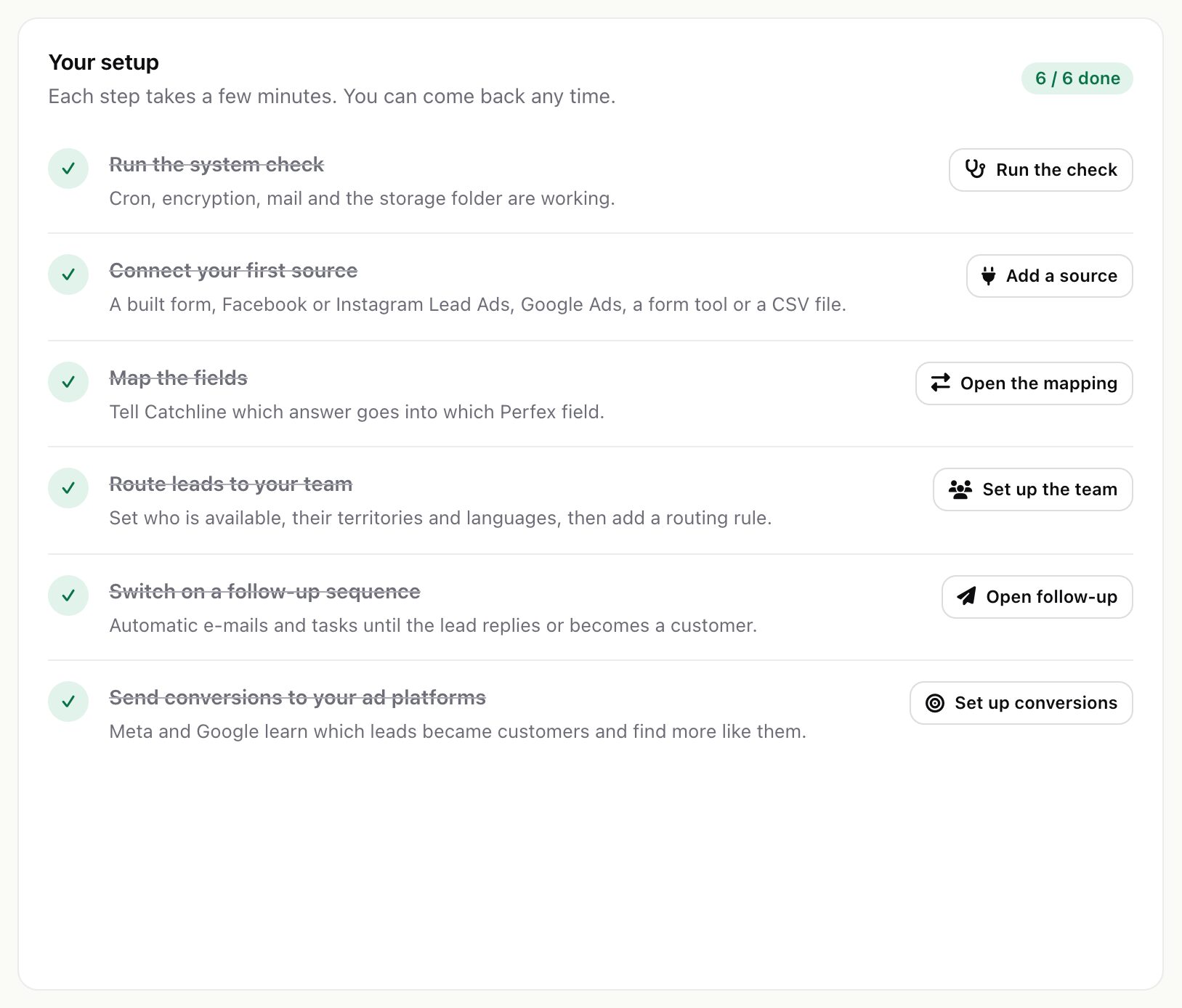
Sample data (administrators, on the same page) fills the screens so you can look around first: sample leads with scores and sources, a sample sequence and report figures. Sample records live only in Catchline's own tables; nothing is added to your Perfex leads, customers or tickets, sample sources, rules and the sequence stay switched off, and nothing is sent. Remove sample data deletes exactly the sample records. Remove it before you start with real leads.
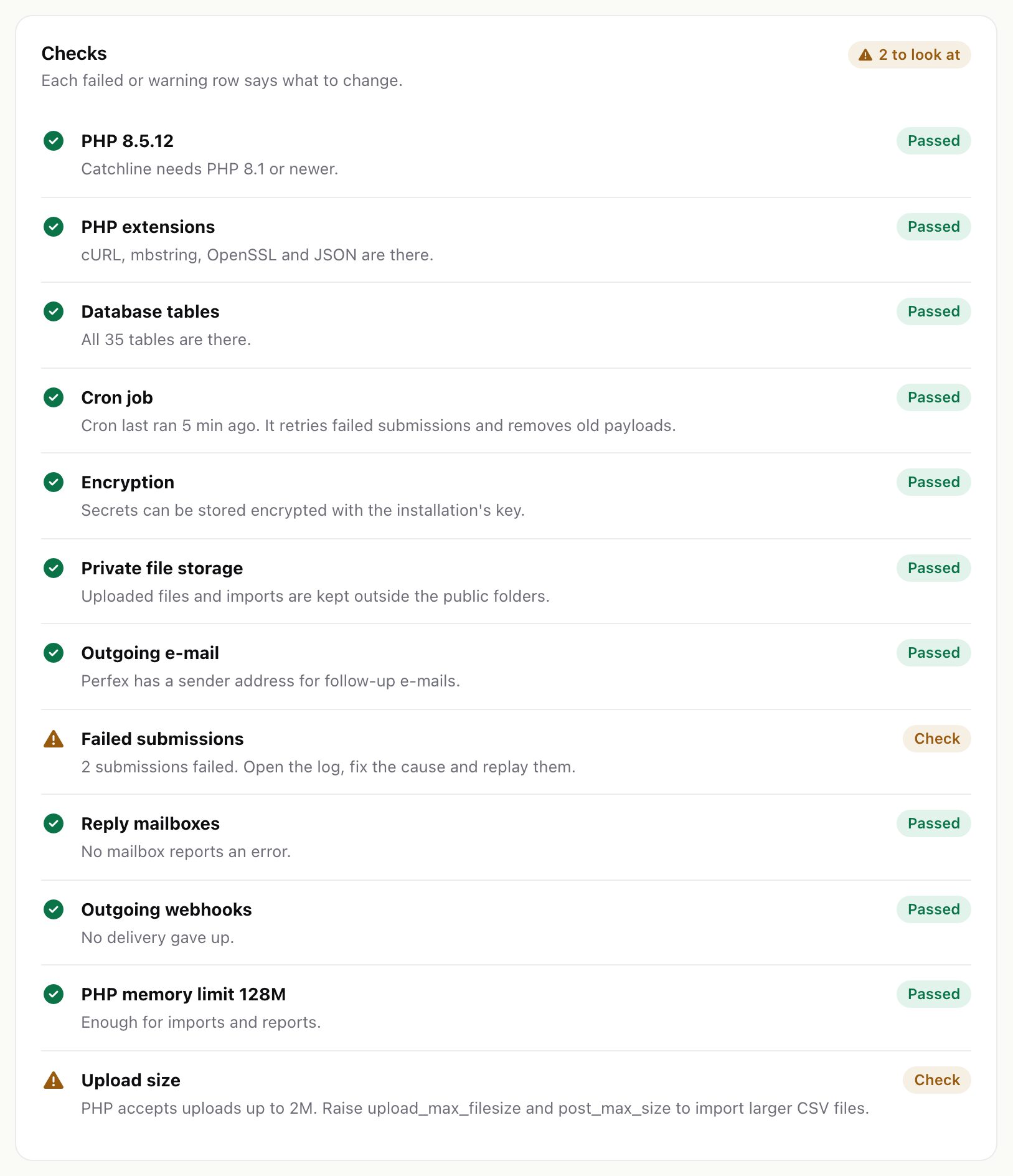
Then open System check and fix any red line. Every line says what to change.
07On the Perfex lead page
For leads Catchline captured or scored, the Perfex lead page shows a small Catchline: score button (or Catchline: source and speed) that opens the lead panel with the score, the reply timer, the source and campaign and the follow-up. Perfex documents no hook for a tab on the lead page, so the module adds this button at the bottom of the page.
08Updating to a new version
- Back up. Save the database, the
modules/catchline/folder and the wholeuploads/catchline-private/folder (stored form uploads). - Replace the module files. Upload the new
catchline.zipin Setup > Modules, or replace themodules/catchline/folder over FTP. Do not deleteuploads/catchline-private/. - Upgrade the database. Do it if Perfex offers it for the module in Setup > Modules. The upgrade, like every activation, adds missing tables, columns, indexes and settings. It never drops a table or a row, and it keeps your settings, sources, forms and the signing secret.
- Check. Open Setup > System check and send one test lead through each source.
Read the changelog before you update.
09Deactivate
Deactivating keeps every table, setting and file. While the module is off nothing is captured or sent: built forms and embeds answer "not found", the webhook and Lead Ads links answer "Catchline is not active on this site" (HTTP 503), and the Google conversion file, tracking and unsubscribe links answer "not found". Leads that providers try to deliver in that time are refused; whether a provider tries again later depends on that provider (Meta retries for up to 36 hours; you can also fetch missed Lead Ads leads, see Fetch leads you missed). Reactivate to continue where you left off.
10Uninstall
Uninstall removes all 35 Catchline tables (sources, forms, the submission log, scores, sequences, reports, logs), every Catchline setting including saved keys and tokens, and the files forms stored. Export what you need and back up first. Leads, customers, contacts, tickets, tasks and notes Catchline created are Perfex records and stay, and so do files already attached to Perfex leads.
- At the providers nothing changes. Remove the webhook in your Meta app and in Google Ads, the webhooks or scripts in your form tools, and the embed codes on your website yourself.
- On disk: uninstall also removes
uploads/catchline-private/with its guard files and itsimport/folder (or, with your own storage folder, everything Catchline wrote there). A file Catchline did not write stays, and so does its folder.